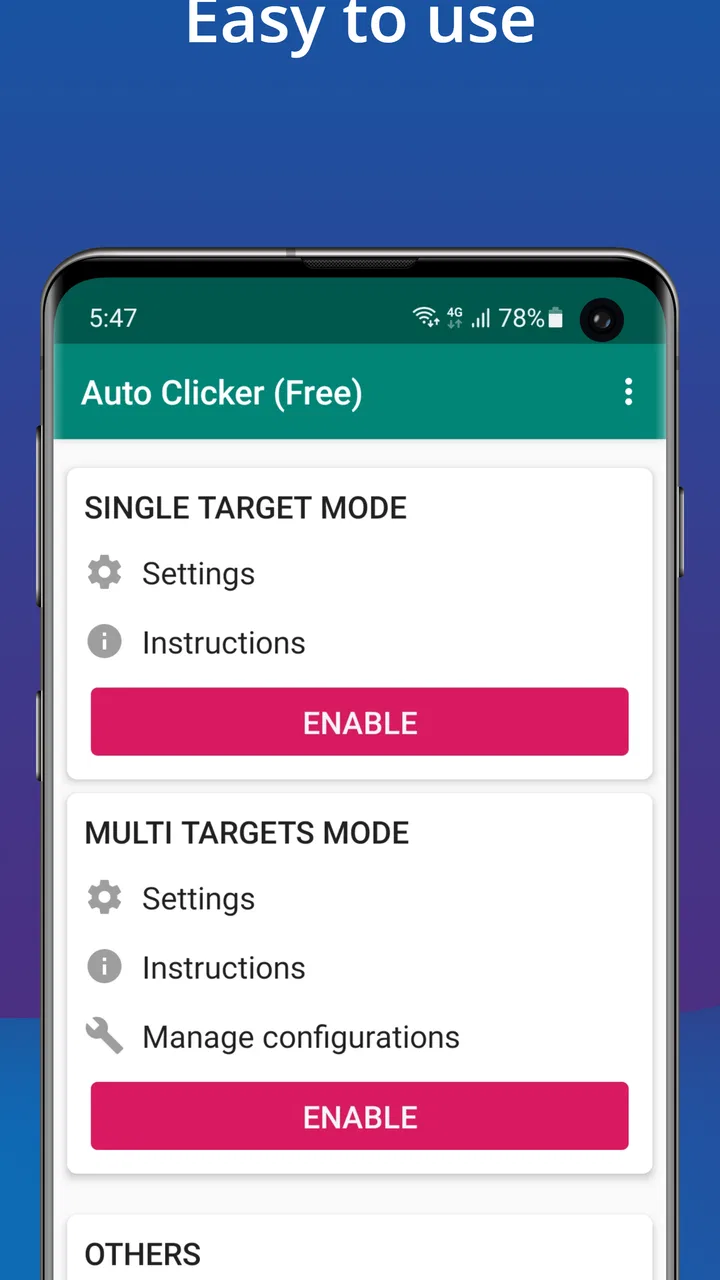
Auto Clicker - Automatic tap
- 4.5
- Rating
- 100.00M
- Installs
- Free
- Price

 Analysis by App-foxy
When I first opened Auto Clicker - Automatic tap, I understood the appeal almost immediately: it is a focused tools app for automating repeated taps instead of making me perform the same gesture over and over. That sounds simple, and it is, but the real value appears in the small moments when a repetitive action becomes tiring, slow, or easy to mistime. Rather than presenting itself as a broad automation suite, it concentrates on one job and makes that job approachable for someone trying an auto clicker for the first time.
The app is free to install, with optional in-app purchases listed at $1.99 per item. It comes from True Developers Studio and has built a large audience, with an average rating of 4.6 from around 805 thousand ratings and more than 100 million installs. Those figures do not replace personal testing, but they do suggest that the basic idea is easy for many Android users to understand. I found the most useful way to judge it was not by asking whether it can do everything, but whether it can make one repeated tapping task less annoying without turning setup into another chore.
What to expect before you start
Auto Clicker - Automatic tap is best viewed as a practical helper for repeated touch actions. You choose where taps should happen, decide how the sequence should behave, and then let the app repeat that input while you attend to something else. The useful distinction here is between a single repeated point and a more involved routine. A single point is suitable when the same button or screen location must be tapped again and again. A multi-step routine is more appropriate when the screen needs taps in different places or in a particular order.
You May Also Like

 AccuWeather: Weather Radar
AccuWeather Review: A Quick, Clear Forecast for Everyday Decisions
For everyday plans, the best forecast is the one you can understand quickly. AccuWeather makes rain timing, radar, and local conditions easy to act on, with a few trade-offs.

 Hill Climb Racing
Why Hill Climb Racing Still Turns Crashes Into One More Run
A tiny car, a bumpy hill and one more upgrade: Hill Climb Racing keeps resurfacing because its simple chaos makes every near-miss feel personal.

 AliExpress - Shopping App
AliExpress Makes Global Shopping Feel Personal, but Shoppers Bear the Risk
AliExpress turns a global marketplace into a pocket-sized discovery engine. Its reach is useful, its shopping loop compelling, and its trade-offs easy to miss.

 Lords Mobile: Kingdom Wars
Lords Mobile Is a Kingdom-Building Routine, Not a Quick Match
A case-by-case verdict on the building, battles, device demands, and social commitments that make Lords Mobile rewarding for some players and exhausting for others.

 PDF Scanner app - TapScanner
TapScanner Makes Paperwork Easier to Capture, Check, and Share
TapScanner makes scanning with a phone feel less like a rescue operation and more like a dependable step in getting work done. Its capture tools are useful, though not flawless.

 Block Blast!
 Shows How Much a Puzzle Game Can Leave Out
A quiet grid game shows why puzzle players increasingly value instant clarity, repeatable skill and low-pressure play—and where the genre still needs to catch up.
More From Our News Desk
View All News


That difference matters because an auto clicker is not a universal shortcut. It does not understand the purpose of every button on your screen. It works from positions and timing, so it depends on the interface remaining stable. If an advertisement appears, a page shifts, a notification covers the target, or an app changes its layout, the taps may continue while missing the intended control. I would therefore treat it as a precise helper for predictable screens, not as an intelligent assistant that can recognize changing content.
The app is aimed at Android users comfortable with a little experimentation. It supports devices running Android 7.0 or later, and its current version is 2.3.0. The content rating is Everyone, which fits the straightforward nature of the tool, although the way you use any automation utility still deserves common sense. Repeated taps can activate buttons, confirm actions, or interact with apps faster than you expect, so I would never leave a routine running on a screen where an accidental tap could create an unwanted result.
My first recommendation is to begin with a harmless screen. Do not start with a purchase button, a message composer, an account setting, or anything that changes important information. Open a simple page where a missed tap has no consequence, place the target carefully, and watch the first few cycles. This gives you a chance to learn how the floating controls behave and how quickly the sequence begins without risking a frustrating mistake.
Getting through the first setup
The first setup is less about creating an account and more about understanding how the app works alongside another app. An auto clicker needs a way to place and repeat taps over the screen, so Android will present system-level steps that may feel unfamiliar if you have never used this kind of tool. I recommend reading each screen rather than rushing through it. When Android asks you to enable the relevant access, make sure you understand that this is what allows the utility to perform touch actions on your behalf.
Once the app is ready, look for its on-screen controls and identify which control starts or stops the routine. That small check saves time later. New users often focus on positioning the tap point and forget to learn how to stop the process quickly. I make stopping the first thing I test: place a point on a safe area, start it briefly, and then stop it. After that, the rest of the setup feels much less intimidating.
For a first attempt, use one tap point rather than building a complicated sequence. Position it over a large, stable target and keep the surrounding screen visible. A target near an edge can be harder to place accurately, especially if the floating control itself gets in the way. A central, clearly defined button is easier to inspect and gives you a cleaner test of whether the automation is working.
Timing deserves more attention than beginners usually give it. If taps happen too quickly, the app being controlled may not have time to respond, and the routine can look unreliable even when the position is correct. If the interval is too slow, the automation may technically work but save little time. I prefer starting conservatively, watching how the target responds, and only then making the rhythm faster. The best setting is not the fastest possible one; it is the fastest pace the other app can handle consistently.
There is also a useful habit for avoiding accidental actions: prepare the destination screen completely before starting the clicker. Close menus you do not need, wait for the page to finish loading, and check that the target has not moved. Starting the routine while the screen is still changing is one of the easiest ways to create confusing results. In my experience, preparation makes a bigger difference than repeatedly adjusting the tap point after something has already gone wrong.
Reaching a first meaningful success
A good first success is a short, controlled task rather than a long unattended session. Imagine a screen with one button that must be pressed repeatedly while you monitor the result. I would place a single point over that button, start the routine, observe several activations, and stop it manually. If each tap lands where expected and the app responds normally, you have confirmed the three essentials: the access is working, the position is correct, and the timing is suitable.
This test also reveals an important limitation. The tap point belongs to the screen location, not necessarily to the meaning of the button. Rotate the device, resize the window, open a keyboard, or move to a different screen state, and the same coordinates may no longer be useful. For that reason, I would create a routine only after the screen is in its final working state. If you use the same process at different times, check the target again instead of assuming the old position will always remain accurate.
One realistic everyday use is monitoring a repetitive interface action while doing something nearby, such as waiting for a predictable on-screen process that requires the same confirmation repeatedly. The benefit is not just speed. It is reducing the mental fatigue of watching one location and tapping it over and over. I found that the tool is most comfortable when I remain close enough to see what is happening, especially during the first minutes. Automation should remove repetition, not remove awareness.
Another useful workflow is to use the app for a short batch and then stop it before changing screens. This is safer than starting a routine and navigating elsewhere while it is still active. If you need to move to another page, stop the automation first, reposition it on the new page, and run a fresh test. That extra pause may seem inefficient, but it prevents the clicker from sending taps to an unrelated control after the interface changes.
For more involved tasks, multiple tap locations can make sense when the order is stable. However, I would build such a sequence gradually: add one point, test it, then add the next. Testing the entire routine at once makes it difficult to tell whether the problem is the position, the order, or the delay between actions. The app becomes much easier to trust when each part has been checked independently.
Common confusion and how I avoid it
The most common confusion is mistaking a visible tap marker or control for the action itself. The floating interface helps you manage the routine, but it may also cover part of the screen. If the target is hidden beneath a control, move the control before starting. A routine can be technically active while appearing broken simply because the marker blocks your view or the underlying app has not visibly changed yet.
Another source of trouble is assuming that every app treats repeated taps in the same way. Some interfaces react instantly, while others need time to load or update. A fast sequence that works on a simple screen may overwhelm a slower one. I would adjust the interval based on the response of the app being controlled, not on the theoretical speed of the clicker. If a result appears late, increase the pause and test again rather than adding more tap points.
Screen changes are especially important. A scrolling page, pop-up, keyboard, rotating display, or changing content can shift the target away from the stored location. This is why the tool is a poor choice for tasks that require visual judgment. If you need the system to find a button by its label, recognize an image, or adapt to a changing layout, a conventional accessibility feature or a purpose-built automation solution may be better. Auto Clicker - Automatic tap is strongest when you already know exactly where the action belongs.
Stopping behavior is another detail worth practicing. Before using the app on anything important, confirm that you can end the routine from the floating controls or the app’s available stop mechanism. I would also avoid positioning a tap point near a control that could make stopping difficult. A little space between the target and the stop control gives you more room to react if the routine behaves differently than expected.
Some people may wonder whether the app is suitable for games. It can be useful for repetitive tapping in a game when the screen and action are predictable, but that does not make it a good fit for every title. Games often include moving targets, changing menus, timing-sensitive mechanics, or rules against automated input. If success depends on reacting to what appears on screen, fixed taps are unlikely to provide a reliable experience. I would use it only where the game’s design and rules clearly permit that kind of assistance.
Privacy and control also deserve practical attention. Because the app performs touch input, I would install it only from a source I trust, review Android’s access screens carefully, and disable the access when I no longer need automation. That is not a criticism unique to this product; it is a sensible routine for any tool that can interact with other apps. The convenience is real, but it should always be paired with awareness of what the utility is allowed to do.
Where it fits among ordinary alternatives
The usual alternative is simply tapping manually, and manual input remains better when the task is short, irregular, or safety-sensitive. If I only need to press a button a few times, opening an automation tool can take longer than doing it myself. Manual control also adapts naturally when a screen changes, while a fixed routine needs to be stopped and adjusted.
Another alternative is a device’s built-in accessibility or automation capability. Those options can be preferable when the task depends on system actions, recognized labels, or broader device rules rather than fixed screen coordinates. They may also integrate more naturally with the operating system. On the other hand, they can be harder for a beginner to configure. This app’s advantage is its narrow focus: if your need is repeated tapping in a stable location, a dedicated clicker can feel more direct than building a larger automation workflow.
Compared with broader automation apps, Auto Clicker - Automatic tap is easier to approach when you do not want a full programming-style system. The trade-off is flexibility. A general automation tool may handle conditions, text recognition, schedules, or changing states more effectively, while this app is better suited to a known sequence of touch actions. I would choose the dedicated clicker for a simple repetitive job and a broader tool when the task needs decisions rather than repetition.
The popularity of the app is reassuring for first-time users, and its free entry point makes experimenting less costly. Optional purchases at $1.99 per item may matter if you want to go beyond the basic experience, so I would first establish that the core workflow solves your problem before considering any purchase. The important question is not whether extra capability sounds useful, but whether your particular task is stable enough for an auto clicker in the first place.
Who should use it, and who should skip it
I would recommend it to someone who repeatedly taps the same place, wants a straightforward Android tool, and is willing to spend a few minutes checking the setup. It is also a reasonable choice for users who prefer a focused utility over a large automation platform. The combination of a free starting point, an Everyone content rating, and support for Android 7.0 or later makes it approachable for a wide range of devices.
I would skip it if your task changes constantly, requires the app to understand what is displayed, or involves sensitive actions that should never happen without direct supervision. It is also not ideal if you dislike floating controls or system-level setup. In those cases, manual tapping or a more advanced automation method may be less frustrating. The app does not eliminate the need to think about the screen; it simply takes over the repeated gesture once you have defined it.
For a first-time user, my best advice is to treat the first session as a controlled experiment. Start with one point, use a harmless target, choose a moderate rhythm, watch several cycles, and stop it yourself. Then test how the routine behaves after a small change, such as moving to another page. That process teaches you more than immediately creating a complex sequence, and it makes the tool feel predictable rather than mysterious.
After that first success, the next step is to decide whether your task truly benefits from automation. If it saves only a few taps, manual input may remain simpler. If it removes a long, repetitive action while the screen stays stable, the app can be genuinely useful. I especially appreciate that its value is easy to judge: you can test the exact workflow you care about instead of committing to an elaborate system.
My overall impression is positive, with an important condition attached. This is a focused tap repeater, not a screen-reading automation assistant. Used on stable interfaces and monitored sensibly, it can reduce tedious repetition and give a beginner a clear path from installation to a working routine. Used on changing screens or high-risk controls, it can become unreliable quickly. For the right task, True Developers Studio’s tool is practical, accessible, and worth trying; for anything that demands judgment or adaptation, I would choose a different approach.
FAQs for Auto Clicker - Automatic tap
01What is Auto Clicker - Automatic tap used for?
Auto Clicker - Automatic tap is designed to automate repetitive tapping on your device's screen. It's particularly useful for games or apps that require frequent taps, allowing users to save time and effort by automating this process. This tool provides customizable tap intervals and durations, enhancing user experience in various applications.
02Is Auto Clicker - Automatic tap safe to use on my device?
Yes, Auto Clicker is generally safe to use as long as it's downloaded from a reputable source like the Google Play Store or Apple App Store. However, users should be cautious about granting permissions and ensure their device has the latest security updates to prevent any potential vulnerabilities.
03Does Auto Clicker require rooting or jailbreaking my device?
No, Auto Clicker - Automatic tap does not require rooting or jailbreaking your device. It is designed to work on standard Android and iOS operating systems, ensuring ease of use without compromising the device's security or warranty.
04Can I customize the tapping patterns in Auto Clicker?
Yes, Auto Clicker offers extensive customization options for tapping patterns. Users can set specific tap intervals, durations, and even create multiple tap points. This flexibility allows users to tailor the app to meet their specific needs, whether for gaming or other repetitive tasks.
05Will using Auto Clicker affect the performance of my device?
Auto Clicker is optimized to minimize its impact on device performance. However, running multiple automated tasks simultaneously may cause slight slowdowns on older devices. It's recommended to monitor your device's performance and adjust the app's settings accordingly to ensure smooth operation.
Pros
- Easy to set up and use.
- Supports multiple click points.
- Customizable click intervals.
- No root required for operation.
- Free version includes key features.
Cons
- Contains frequent ads.
- Limited features in free version.
- Can drain battery quickly.
- Occasional crashes reported.
- Not optimized for all devices.

Auto Clicker - Automatic tap
Gallery